Elecfreaks · micro:bit Series
IoT & Environmental Data Science

micro:bit
Smart Science
IoT Kit

Connect the physical world to the cloud. Students collect real environmental data using professional-grade sensors, upload it to IoT platforms, and build automated systems — mastering the full data science pipeline from sensor to insight.

🌎 5 Real-World IoT Projects 🔌 12 Sensors & Modules ☁️ 4 Cloud Platforms 📈 Live Data Visualization 🎓 Grades 6–10
Request a Quote →
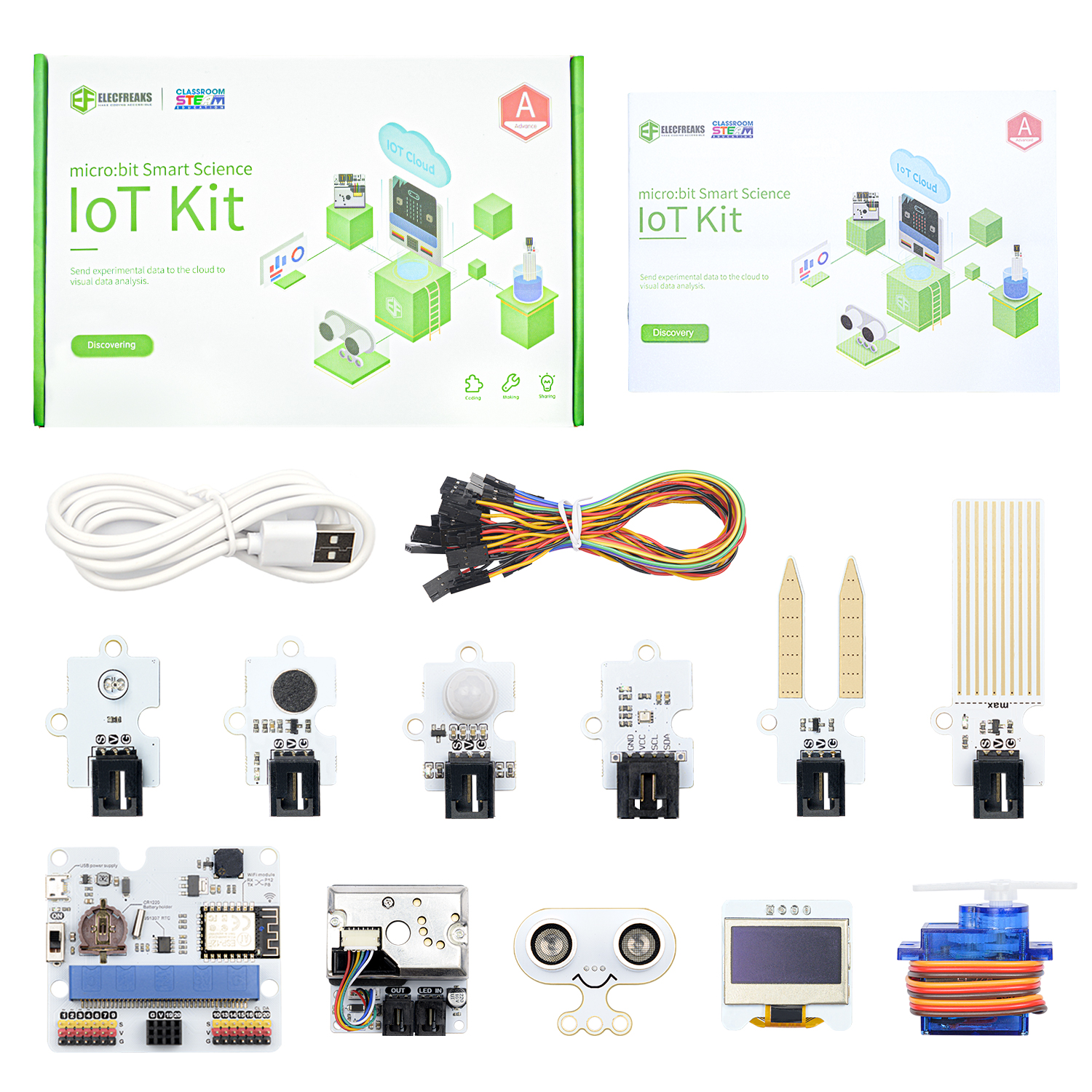
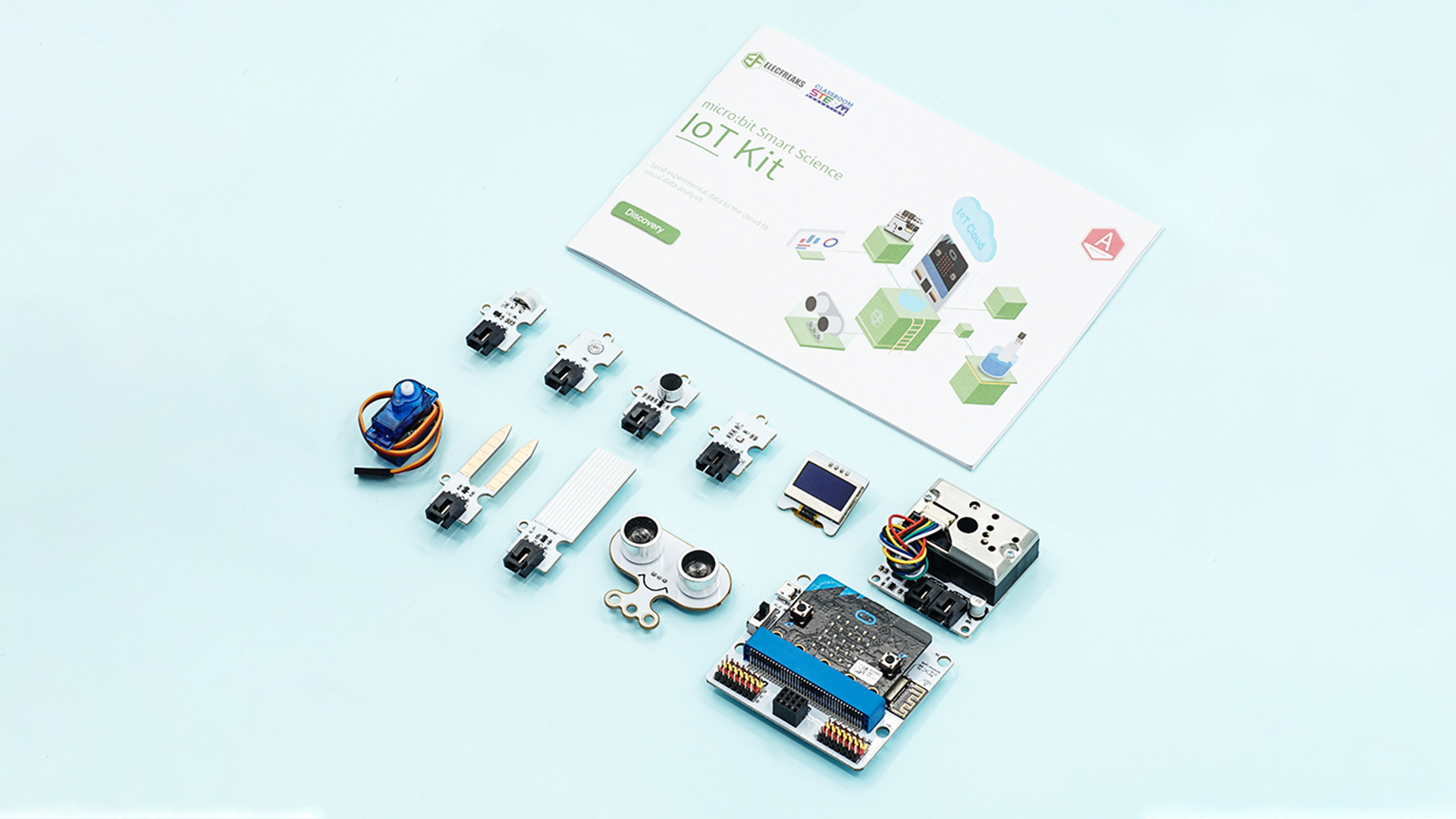
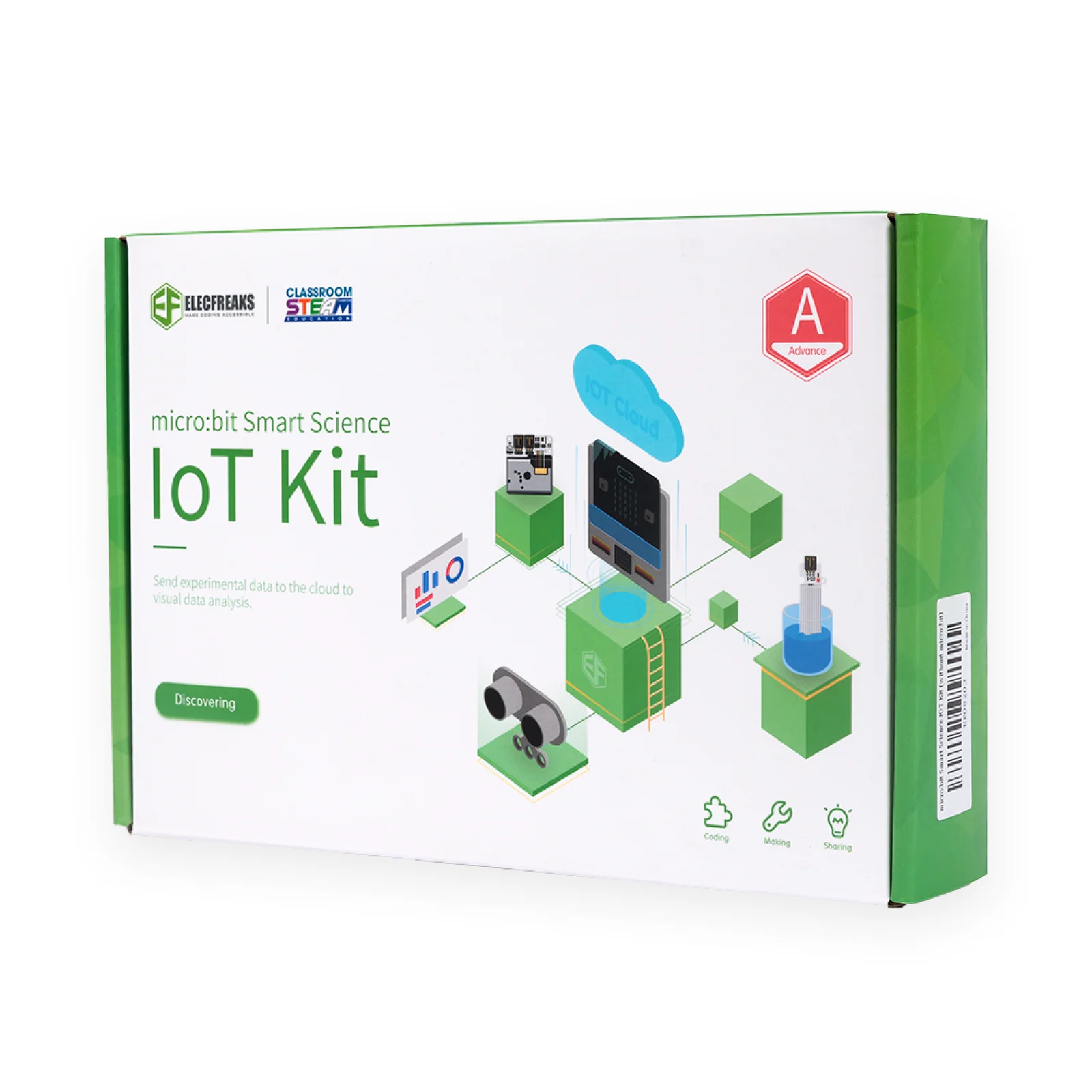
micro:bit Smart Science IoT Kit — full component layout
5
IoT Cases
12+
Sensors
4
Platforms
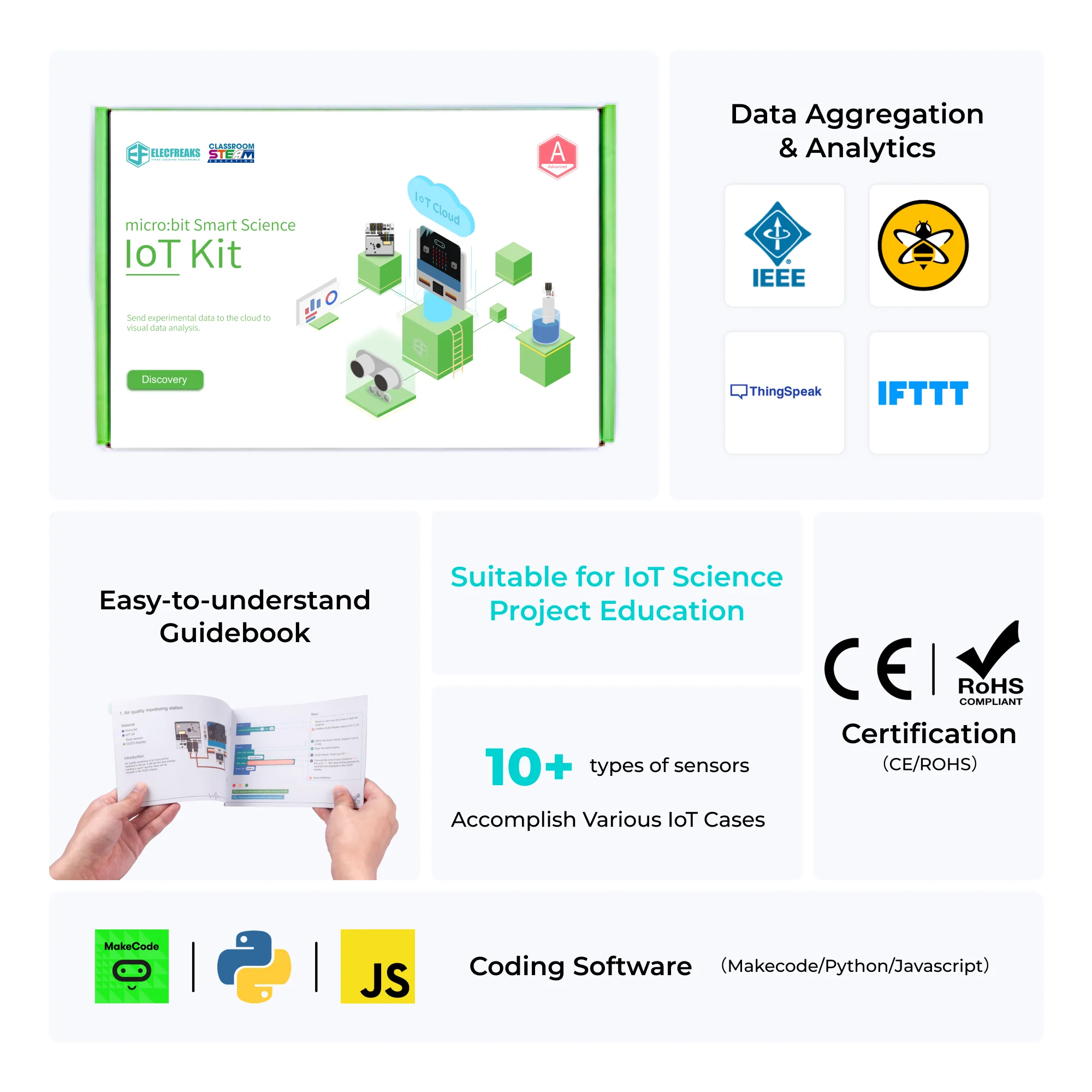
Smart Science IoT Kit — sensors and guidebook
IoT Kit sensors and feature overview
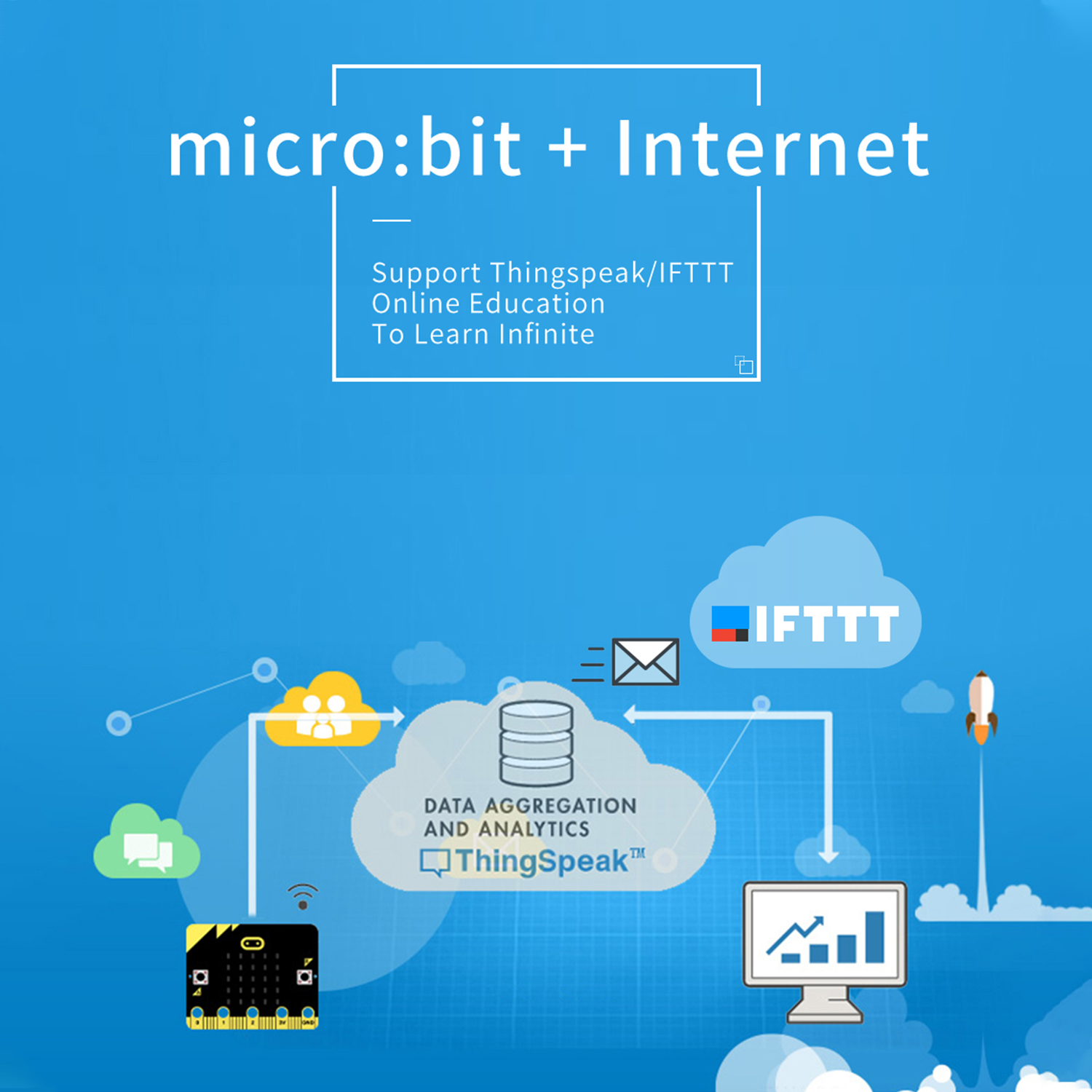
micro:bit + Internet connectivity
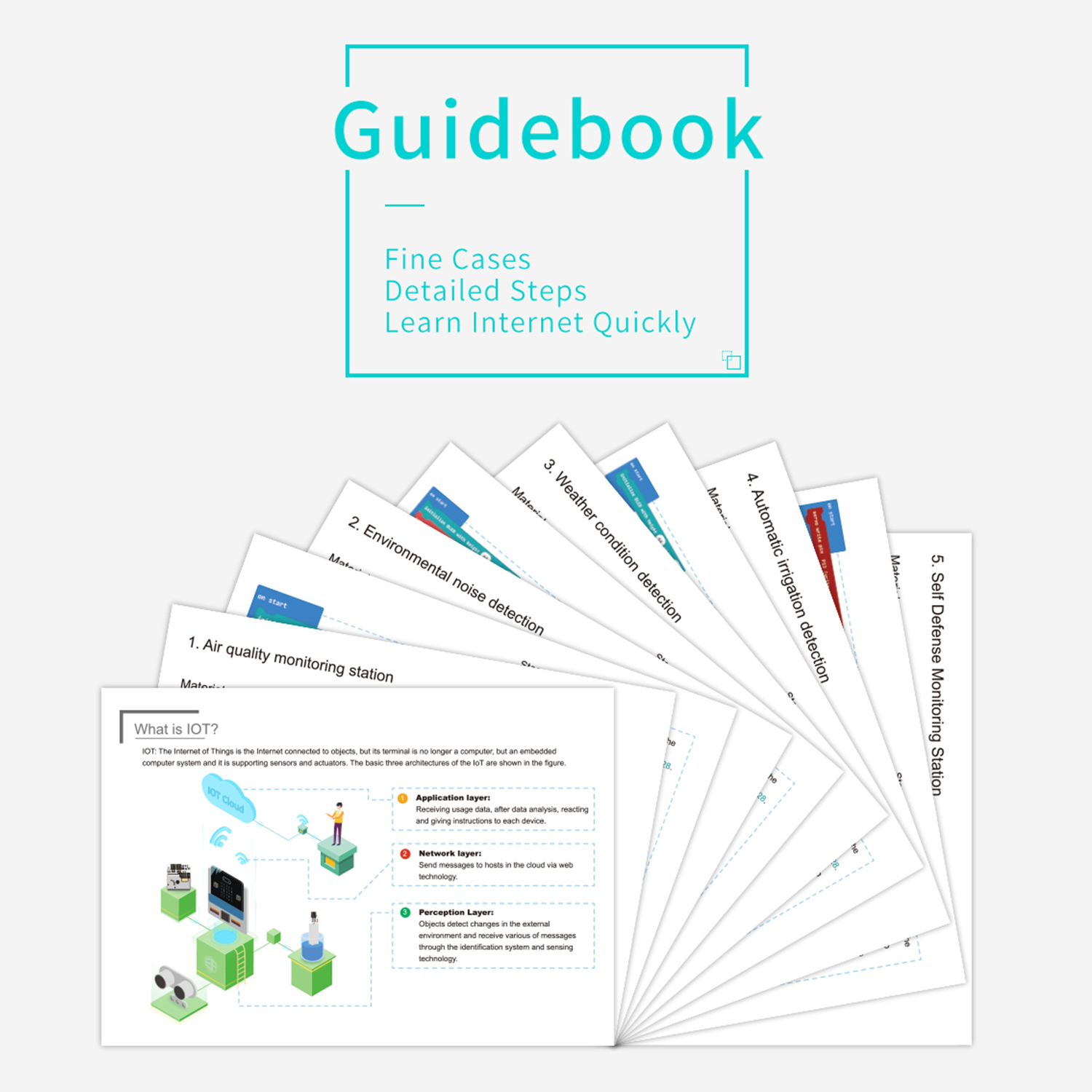
IoT Guidebook — Fine Cases, Detailed Steps
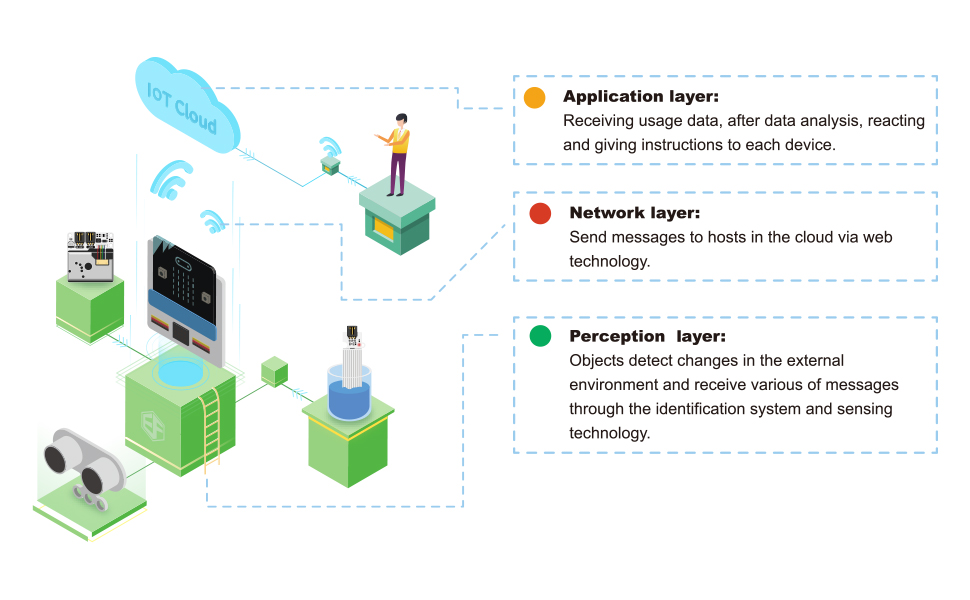
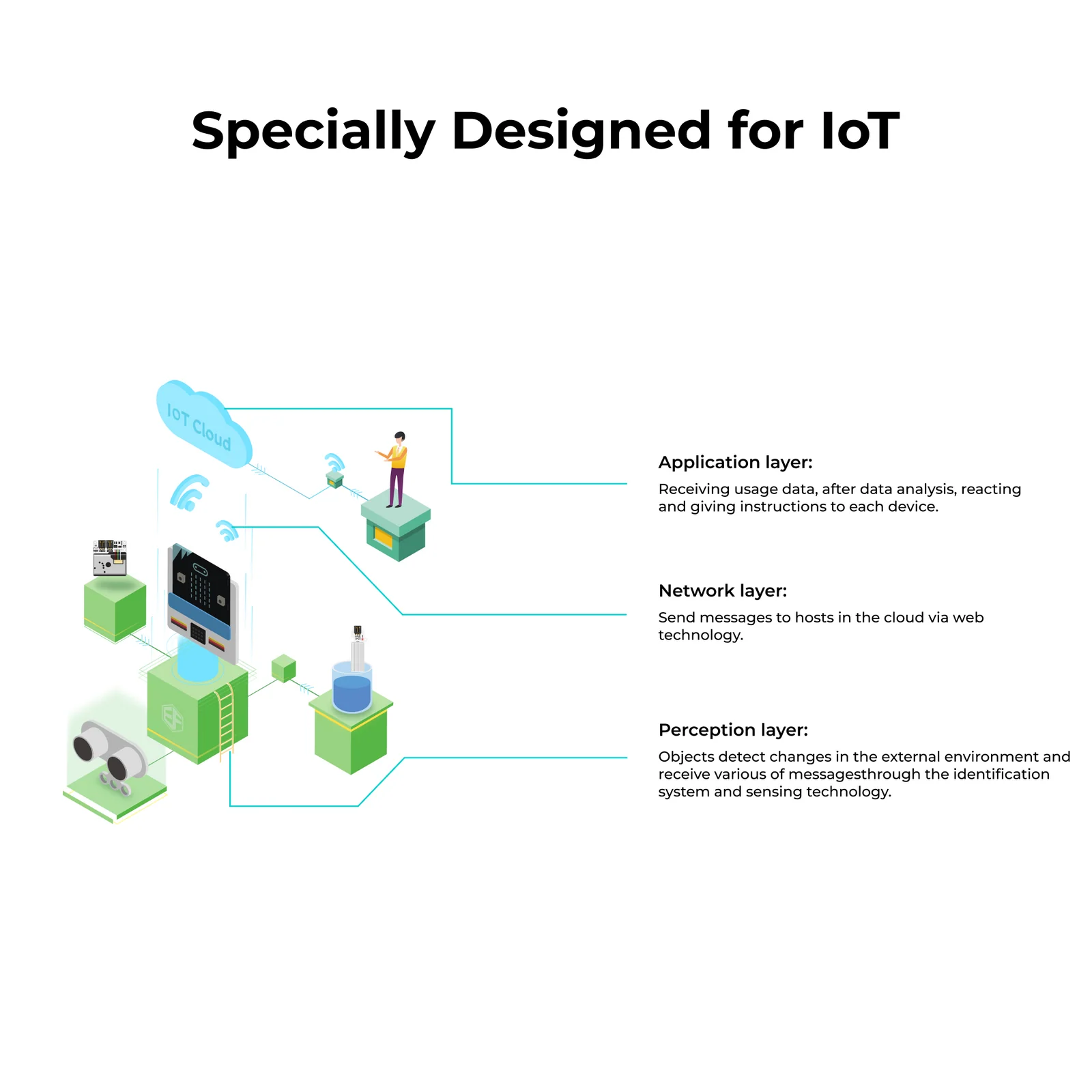
Specially Designed for IoT — 3-layer architecture

Connect the Physical World to the Cloud

The Smart Science IoT Kit brings Internet of Things learning to life. Students use WiFi-enabled micro:bit boards to collect real environmental data — air quality, noise, temperature, humidity, light, soil moisture — and transmit it to cloud platforms for visualization, analysis, and automated responses.

☁️
Multi-Platform Cloud Connectivity
Push live sensor data to SmartIoT, ThingSpeak, IFTTT, or HiveMQ MQTT — students experience real IoT workflows used by professional engineers.
🌎
Environmental Science Meets Technology
Monitor air quality, noise pollution, soil humidity, and more. Each project is grounded in real-world science contexts that connect STEM learning to everyday life.
📈
Real-Time Data Visualization & Automation
Charts update live as sensors stream data. IFTTT integration triggers automated actions — like sending an email alert when temperature spikes or moisture drops too low.
💻
MakeCode Block & Python Programming
Includes custom extension libraries for MakeCode. Students write code that configures WiFi, uploads sensor readings, and receives cloud-based commands — all in a familiar drag-and-drop environment that scales to text code.

Everything You Need for Real IoT Science

A complete ecosystem of hardware, software, and cloud platforms — purpose-built for classroom IoT education.

📡
WiFi IoT Connectivity
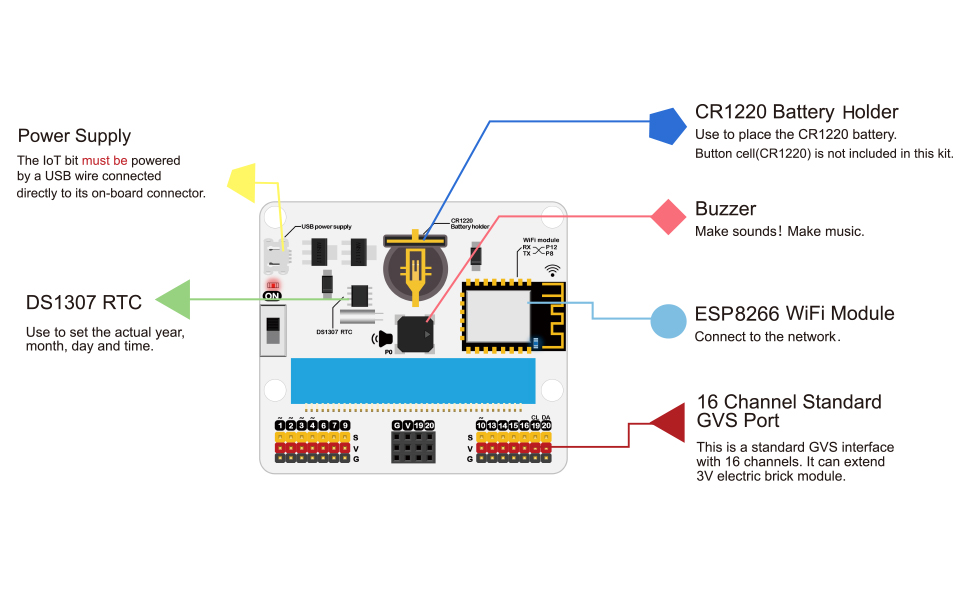
The IoT:Bit breakout board provides built-in WiFi and RTC (Real-Time Clock) capability. Students connect to 2.4GHz networks and transmit timestamped data to cloud services in real time.
☁️
4 Cloud Platform Support
Fully compatible with SmartIoT (classroom-optimized), ThingSpeak (data analytics), IFTTT (automation triggers), and HiveMQ MQTT (professional IoT protocol) — real platforms used in industry.
🌞
Professional Environmental Sensors
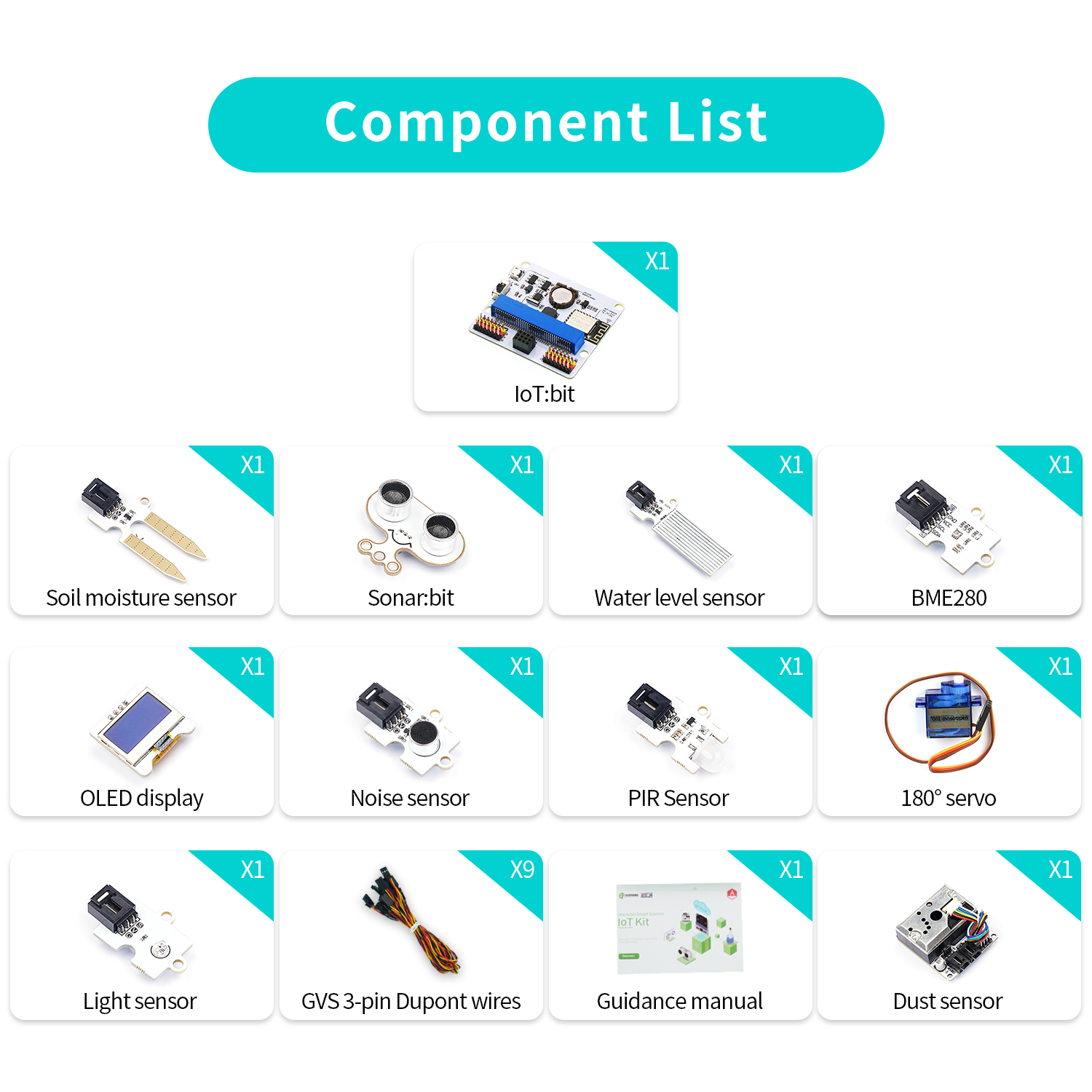
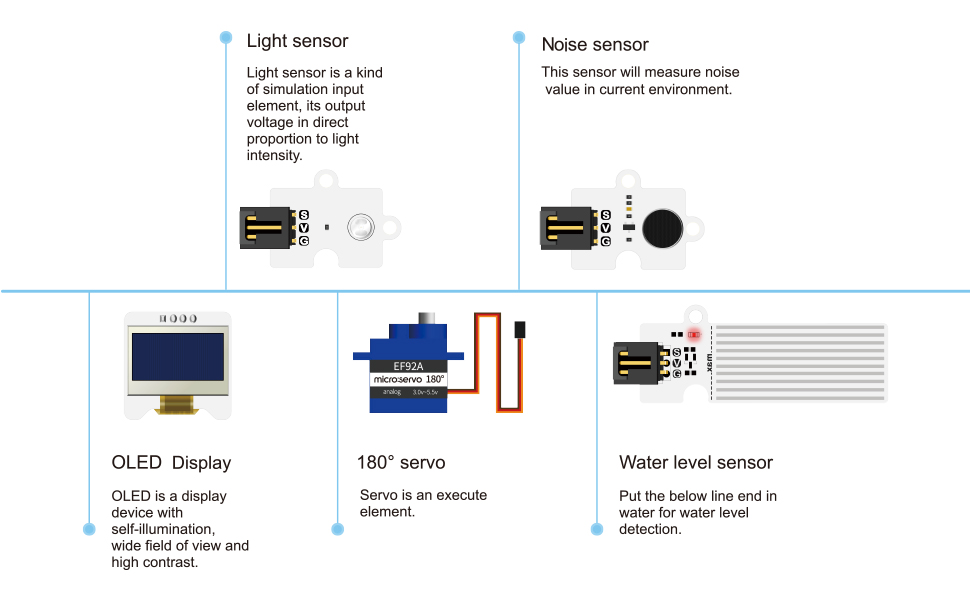
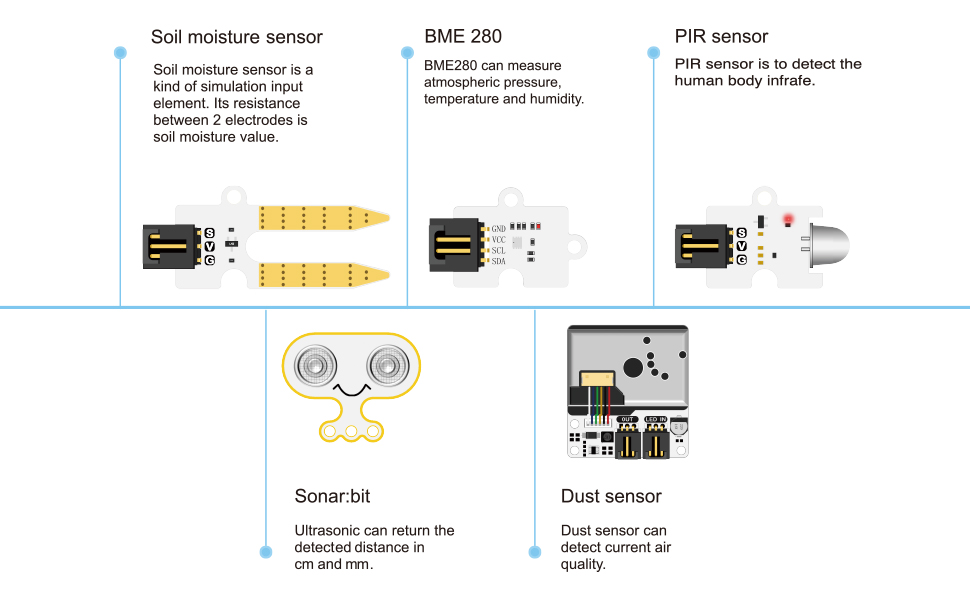
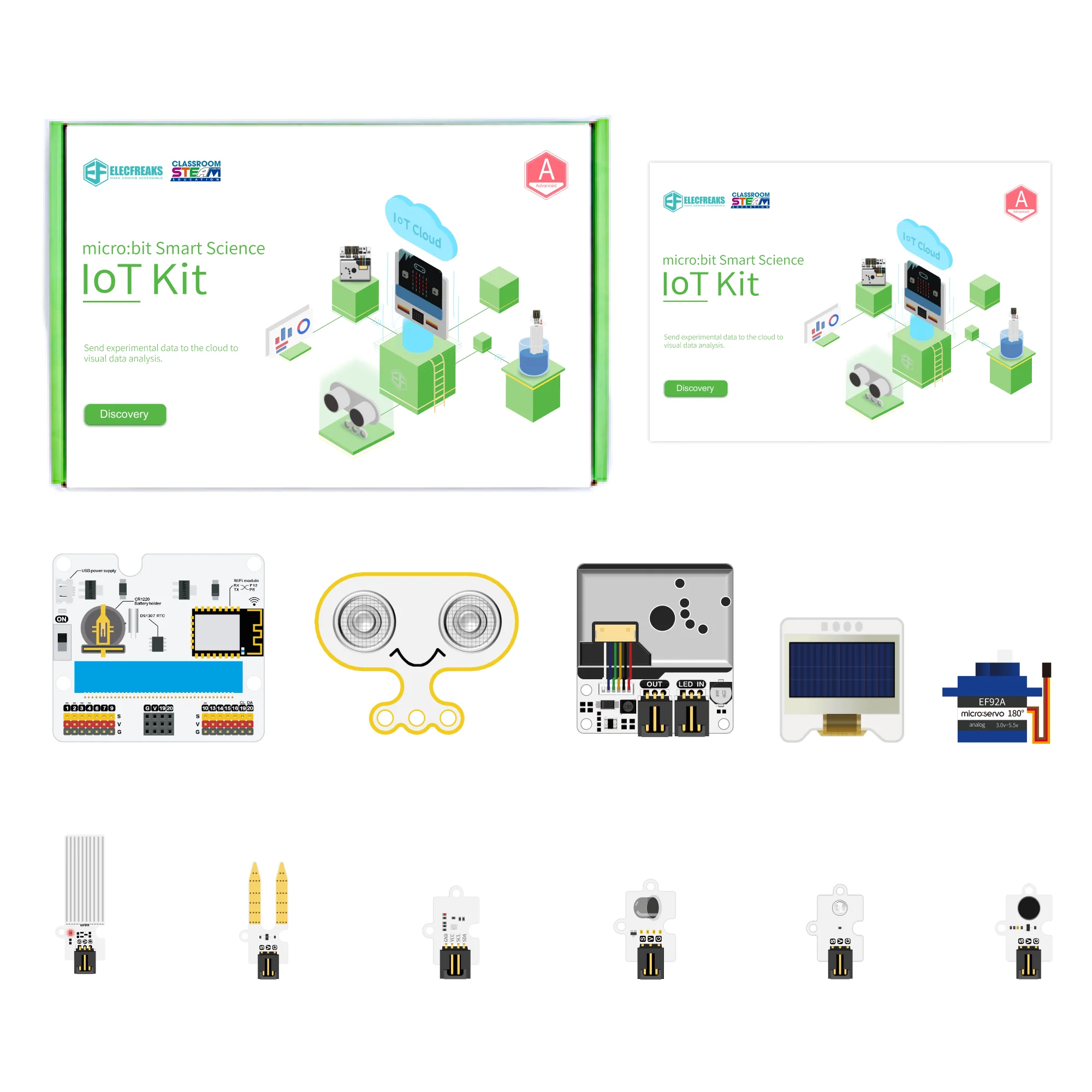
Includes BME280 (temperature, humidity, pressure), dust sensor, noise sensor, light sensor, soil moisture sensor, water level sensor, PIR motion sensor, and ultrasonic distance sensor.
📊
Live Data Dashboards
Visualize sensor streams as live line graphs and numeric gauges on SmartIoT or ThingSpeak. Set threshold alerts and see data update in real time as students interact with their sensors.
Automation with IFTTT
Chain real-world triggers to digital actions. When temperature exceeds a threshold, automatically send an email notification — demonstrating practical IoT automation to students.
📉
Excel Data Analysis
Collect serial sensor data directly into Microsoft Excel via VBA macros. Students build real data science skills — importing, charting, and analysing live environmental readings.

Complete Kit — Ready to Deploy

Everything included out of the box. No extra purchases required to start building real IoT projects.

🔌
IoT:Bit Breakout Board
×1
💻
OLED Display
×1
🌡️
BME280 Environmental Sensor
×1
👁️
PIR Motion Sensor
×1
☀️
Light Sensor
×1
🔊
Noise Sensor
×1
💧
Water Level Sensor
×1
🌿
Soil Moisture Sensor
×1
🔔
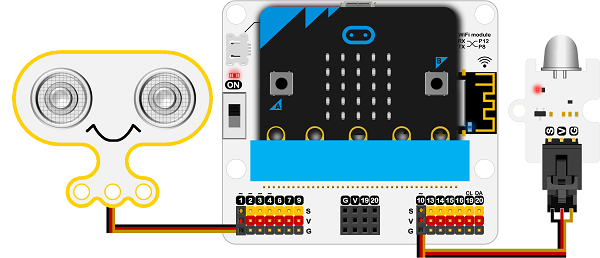
Sonar:Bit Ultrasonic Sensor
×1
💨
Dust Sensor
×1
⚙️
180° Servo Motor
×1
📌
micro:bit (Optional)
×1

User Guide

🌐 smartiot.space

SmartIoT is a classroom-optimized IoT platform designed for educators and students. Manage devices, upload sensor data, visualize live charts, and share configurations — all from one dashboard at smartiot.space.

📚 Platform Guide
🔒
SmartIoT Log In
Create your account and access the SmartIoT dashboard at smartiot.space
1
Visit SmartIoT Platform
Open your browser and navigate to smartiot.space. The platform is web-based and works on any modern browser — no software installation required.
2
Create an Account
Click "Sign Up" on the homepage. Enter your email address and create a secure password. An activation email will be sent to your inbox.
3
Verify Your Email
Open the activation email from SmartIoT and click the verification link. This confirms your account and grants full access to the platform.
4
Log In to Your Dashboard
Return to smartiot.space, enter your account email and password, and click "Login". You will be taken to the Device Management interface.
💡

Teacher Tip: Teachers can create a class account and generate student sub-accounts through the Classroom Management feature — students do not need individual email addresses.

🔌
Device Management
Create and manage up to 10 devices per account, each with a unique Topic ID
1
Access Your Dashboard
After logging in, the Device Management interface displays your account email (upper left), your unique User Token, and all registered devices.
2
Create a New Device
Click "Add Device" to create a new IoT device. Each account supports up to 10 devices. The system generates a unique Topic — your device's network identifier.
3
View Device Details
Click "View Details" on any device card to see its data streams, historical charts, and connection status in real time.
4
Manage Devices
Click the gear icon (⚙️) on any device to rename it, clear all stored data, or permanently delete the device from your account.

🔑 User Token

Your User Token is a unique identifier tied to your account — it is used in your micro:bit code to authenticate all data uploads. Keep it private.

📌 Device Topic

Each device has a unique Topic ID within your account. This is used alongside the User Token in code to route data to the correct device channel.

Data Upload & Sample Code
Stream up to 8 sensor readings simultaneously from micro:bit to the SmartIoT cloud
1
Open MakeCode & Add IoT Extension
Go to makecode.microbit.org, create a new project, then click Extensions and search for "IoT" to add the SmartIoT extension library.
2
Configure WiFi Connection
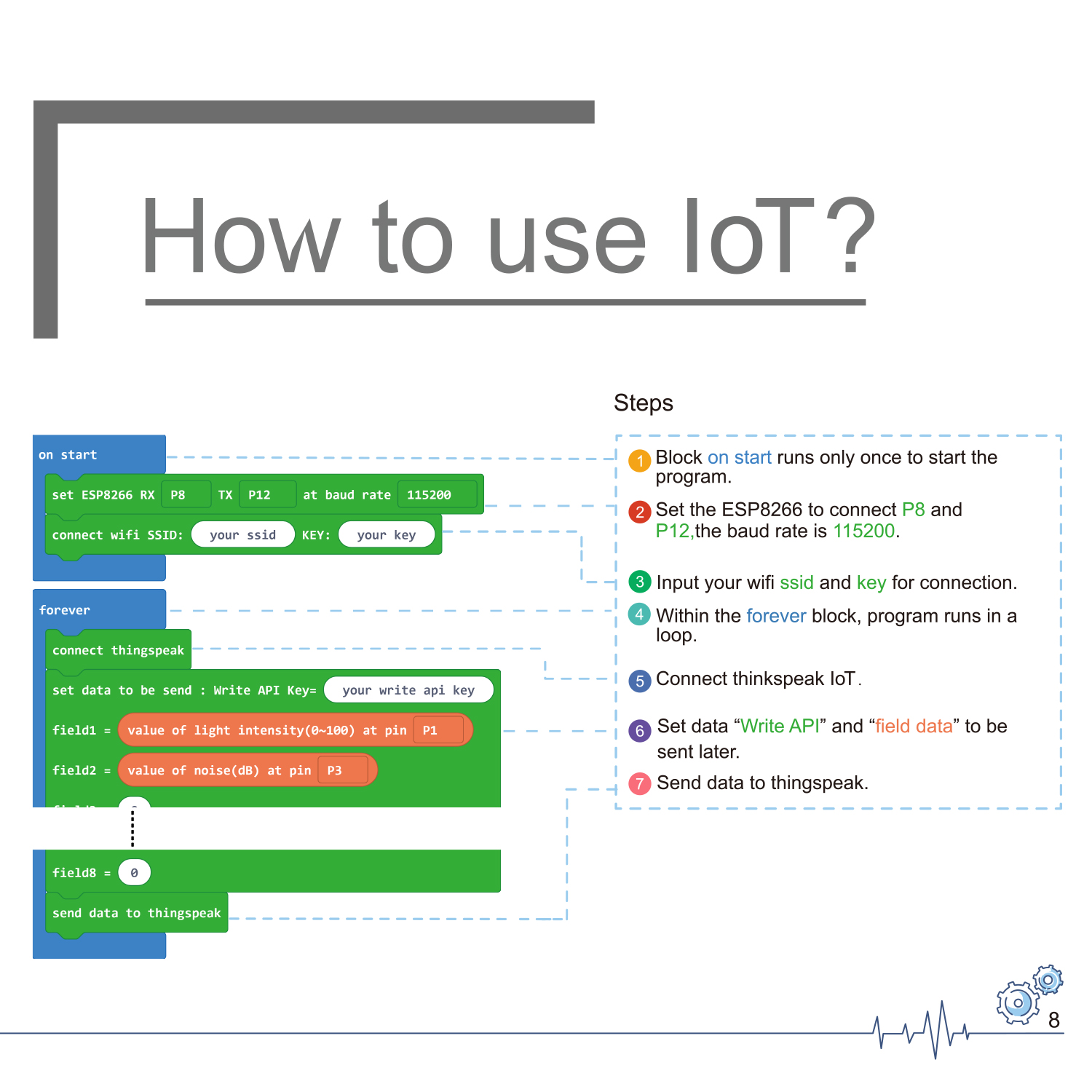
In the on start block, add the Initialize ESP8266 block and set RX to P8, TX to P12, baud rate to 115200. Then add the Connect to WiFi block with your network SSID and password. Note: Only 2.4GHz networks are supported.
3
Connect to SmartIoT
Add the Connect to SmartIoT block and enter your User Token and device Topic from your SmartIoT dashboard. The connection block returns True on success, False on failure.
4
Upload Sensor Data
In a forever loop, add the Upload to SmartIoT block. You can upload up to 8 data values simultaneously — assign each sensor reading to a numbered data channel (1–8).
// Sample: Upload temperature & humidity to SmartIoT on start: Initialize ESP8266 (RX: P8, TX: P12, Baud: 115200) Connect WiFi (SSID: "YourNetworkName", Password: "YourPassword") Connect SmartIoT (Token: "YOUR_USER_TOKEN", Topic: "YOUR_TOPIC") forever: Upload SmartIoT: Data1 = BME280.temperature() Data2 = BME280.humidity() Data3 = lightSensor.read(P1) pause(1000)
💡

Upload Limit: A maximum of 8 data channels can be uploaded simultaneously per device. Use multiple devices if your project requires more than 8 simultaneous data streams.

🏫
Classroom Management
Create and manage student accounts — no individual emails required
1
Access Classroom Settings
After logging in as a teacher, click your username dropdown in the top-right corner and select "CLASS" to open the Classroom Management panel.
2
Create a Classroom
Click "New Class" and enter a classroom name. Then add student accounts by entering student names — names must be 15 characters or fewer. Students can be added individually.
3
Manage Student Accounts
For each student you can: export or copy their login credentials, reset passwords, and remove accounts from the class roster when no longer needed.

👥 Student Access

  • Students receive generated login credentials
  • No personal email address required
  • Each student gets their own device dashboard
  • Teacher can view and monitor all student data

🔒 Password Management

  • Teacher can reset any student password
  • Students can change password via account settings
  • Enter old and new password to update credentials
  • Credentials can be exported to CSV for distribution
💻
Programming & Coding
MakeCode block-based programming with the SmartIoT extension library
1
Add the IoT Extension
In MakeCode, open Extensions and search for "iot-environment-kit". This adds all SmartIoT blocks to your toolbox, including sensor reading, WiFi connection, and cloud upload blocks.
2
WiFi & Platform Connection
Use the Initialize ESP8266 block to configure the WiFi module, then Connect to WiFi with your network credentials. Finally, connect to SmartIoT using your User Token and device Topic.
3
Remote Control Switches
Use remote control switch blocks to receive commands from the SmartIoT dashboard. When you toggle a switch on the platform, the micro:bit executes a corresponding program block — enabling bidirectional IoT control.
4
Verify Connection Status
The connection block returns a boolean value — True for successful connection, False for failure. Use an if/else block to show status on the micro:bit LED display or OLED screen.
// Remote control + sensor upload pattern on start: initESP8266(RX:P8, TX:P12, Baud:115200) connectWifi("SSID", "Password") if connectSmartIoT(Token, Topic) == True: showIcon(✓) else: showIcon(✗) forever: uploadData(D1=temperature(), D2=humidity()) if remoteSwitch(1) == ON: servoWrite(P10, 90°) // Open valve pause(2000)
📊
SmartIoT Data Filtering
Filter and explore your sensor data by time range and data channel
1
Open Device Data View
From the device dashboard, click "View Details" on any device to open its full data view. You will see all uploaded sensor channels plotted as live line graphs.
2
Set a Time Range
Use the "Start Time" and "End Time" pickers to filter the chart to a specific time window. This lets you isolate data from a particular experiment session or lesson.
3
Select Data Channels
Click the "Data" tab to choose which sensor channels (Data 1 through Data 8) are displayed on the chart. Toggle channels on/off to focus on the readings most relevant to your experiment.
4
Customize Display with Edit Settings
Click "Edit" within the device settings to rename data channels, adjust chart scales, and toggle which information fields are shown on the dashboard.
💡

Classroom Tip: Use Data Filtering during class discussions to isolate specific experiment time windows and compare readings across different student groups or sessions.

⚙️
Configuration Sharing
Export and import device configurations for quick classroom deployment
1
Open Device Configuration
Navigate to a device's detail view and click the gear icon (⚙️) to open its configuration panel. This shows all current settings including channel names, data labels, and display preferences.
2
Export Configuration
Click "Copy" to copy the device configuration as a shareable code or link. This captures all your channel names, labels, and display settings into a portable format.
3
Import Configuration
On another device or student account, click "Import" and paste the configuration code. All settings are applied instantly — saving students from manually re-configuring each device.

🎻 Teacher Use Case

Configure one "template" device with correct channel names and labels, then export and distribute to all students. The entire class starts with a consistent, pre-configured setup in seconds.

🔄 What Gets Shared

  • Data channel names (D1–D8)
  • Chart display preferences
  • Data field labels and units
  • Dashboard layout settings
👥
Device Sharing
Share live device data publicly or privately with specific users or class members
1
Open Sharing Settings
From the device detail view, find the Sharing section in device settings. You will see two sharing modes: ALL (Public) and Specified (Private).
2
Public Sharing (ALL)
Select "ALL" to generate a public link. Anyone with this link can view the device's live data dashboard — useful for science fairs, class presentations, or parent showcases.
3
Private Sharing (Specified)
Select "Specified" to share with specific users by email address. Teachers with classroom accounts can also share directly with enrolled class members without needing email addresses.
4
Read-Only Access
All shared recipients receive read-only access. They can view and explore the data charts but cannot modify device settings, delete data, or upload new readings to the device.

🌎 Public Link Sharing

Generate a shareable URL for your device dashboard. Anyone with the link can monitor live sensor readings — no SmartIoT account required for viewers.

🔒 Private Class Sharing

Teacher accounts can push device access directly to specific students within a class — perfect for group projects or collaborative monitoring assignments.

Connect to the World's Leading IoT Platforms

Beyond SmartIoT, the kit supports four industry-standard cloud and automation platforms — giving students exposure to real-world IoT ecosystems.

IFTTT
If This Then That — Automation Triggers

IFTTT connects websites and apps through their public APIs. When sensor data on ThingSpeak crosses a threshold, IFTTT automatically triggers an action — like sending an email alert or activating a smart device.

1
Create an IFTTT account at ifttt.com and set up a new Applet
2
Configure Webhooks as the trigger service and name your event
3
Set the action (e.g. "Send me an email") for when the trigger fires
4
Link ThingSpeak via ThingHTTP with your Webhooks URL as the endpoint
5
Create a React condition (e.g. temp > 30°C) to fire the trigger automatically
📈
ThingSpeak
MathWorks IoT Analytics Platform

ThingSpeak handles HTTP data requests, stores sensor readings, and provides real-time visualization tools including line graphs, numeric displays, and threshold indicator lights. Supports data from multiple platforms.

1
Register at thingspeak.com with a free MathWorks account
2
Create a new Channel and configure data fields for your sensors
3
Copy your Write API Key from the API Keys tab
4
In MakeCode, add IoT extension and configure ThingSpeak blocks with WiFi credentials and API key
5
Add visualizations: line graph, numeric widget, or threshold light for each data field
📄
Excel & micro:bit
Serial Data Collection & Analysis

Stream sensor data directly from micro:bit into Microsoft Excel via USB serial connection. A pre-built VBA macro reads, parses, and charts live sensor readings — teaching real data science workflows without any cloud dependency.

1
Program micro:bit in MakeCode to send sensor data over serial at 115200 baud every 100ms
2
Install the USB serial driver so the micro:bit appears as a COM port in Windows Device Manager
3
Open the provided Excel workbook containing the VBA macro for serial data reading
4
Update the COM port number in the VBA code to match your device in Device Manager
5
Run the macro — live sensor charts update automatically as data streams in
📡
MQTT / HiveMQ
Professional IoT Messaging Protocol

HiveMQ is a professional MQTT broker and messaging platform used in production IoT systems worldwide. Students implement publish/subscribe messaging patterns — the same protocol used in smart buildings, industrial sensors, and connected vehicles.

1
Register for HiveMQ Cloud at hivemq.com (free tier available)
2
Note the Cluster URL, Port, and WebSocket Port from the Overview dashboard
3
Create login credentials in Access Management for device authentication
4
Subscribe to a topic (e.g. testtopic/1) in the CONNECT CLIENT panel
5
Configure MQTT blocks in MakeCode with TLS scheme, credentials, host, and port. Requires IoT:Bit V1.6+

5 Real-World IoT Cases

Each case places students in the role of a scientist or engineer solving a genuine environmental or safety challenge — from air quality monitoring to autonomous security systems.

Air Quality Monitoring
Case 01
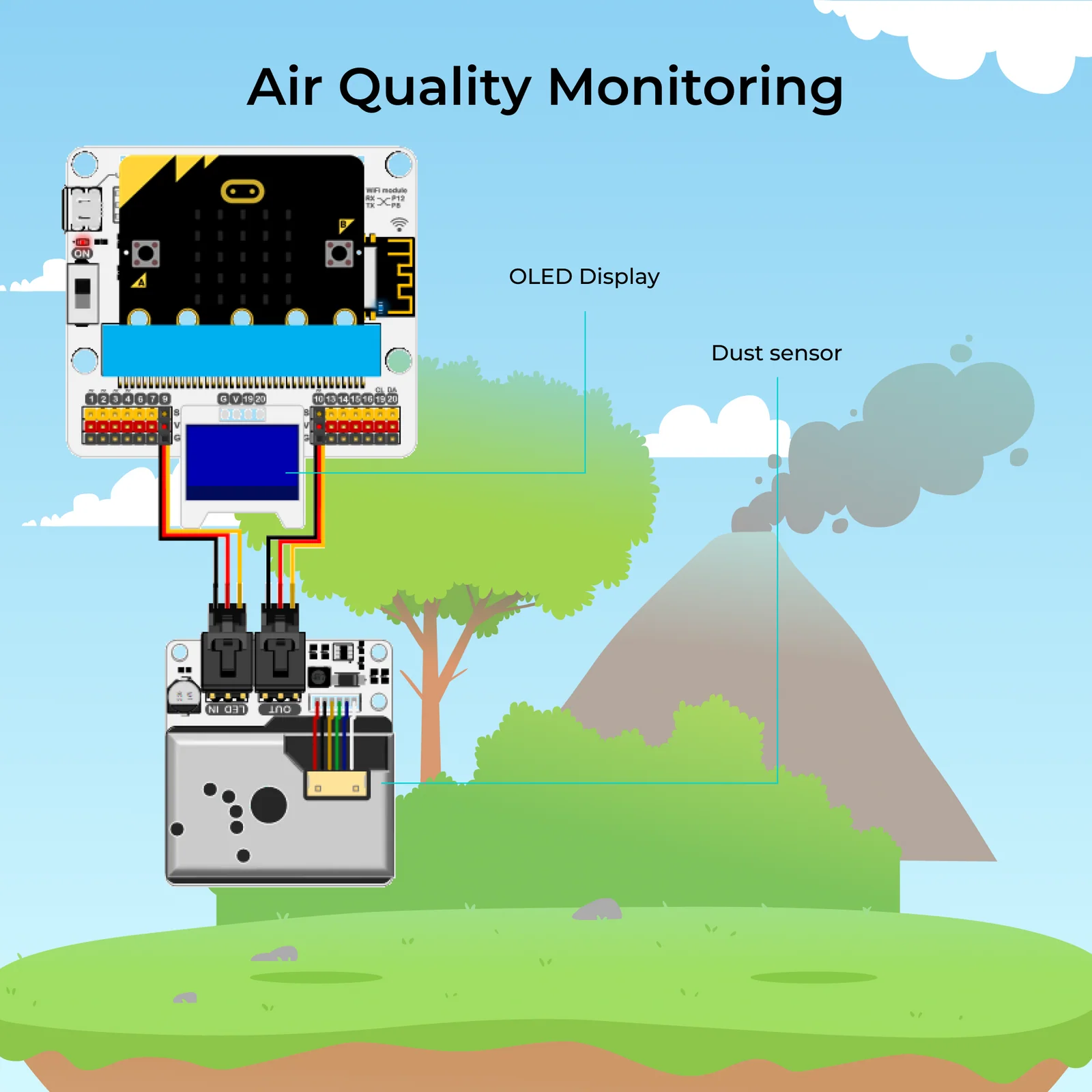
🌌 Air Quality Monitoring
Our Goal
Build a real-time air quality monitoring system and upload readings to the cloud.
Background
The Internet of Things connects everyday devices through software, sensors, and network connectivity — enabling remote monitoring and control. This case introduces students to IoT fundamentals by building a system that continuously measures and transmits air quality data.
Environmental Noise Detection
Case 02
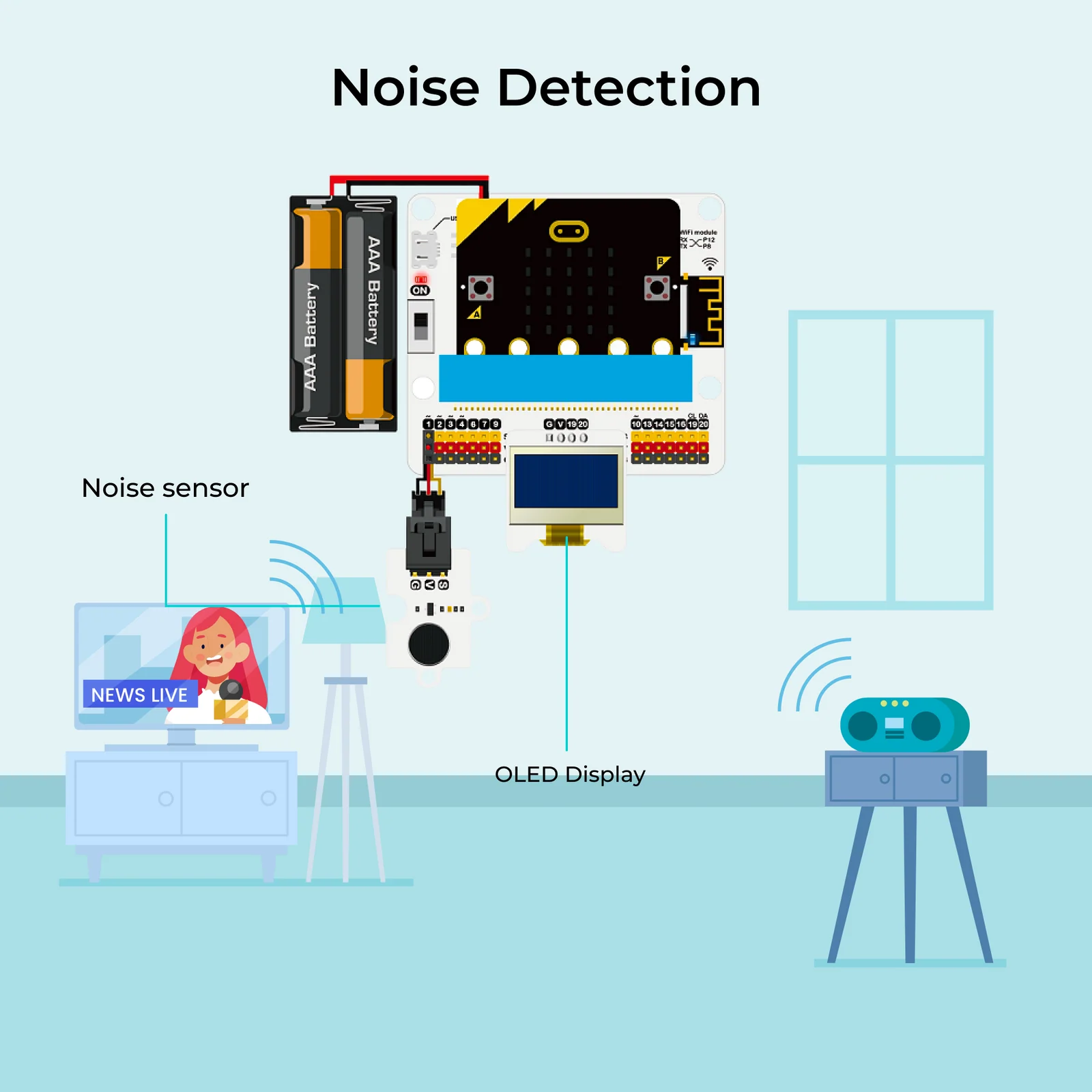
🔊 Environmental Noise Detection
Our Goal
Design a noise pollution monitoring station that logs decibel levels over time.
Background
Environmental noise — from transport, industry, and recreation — is called "unwanted sound" and has documented emotional, physiological, and psychological effects on humans. Students build a real-time noise monitor displayed on an OLED with RTC timestamps.
Environmental Quality Monitoring Station
Case 03
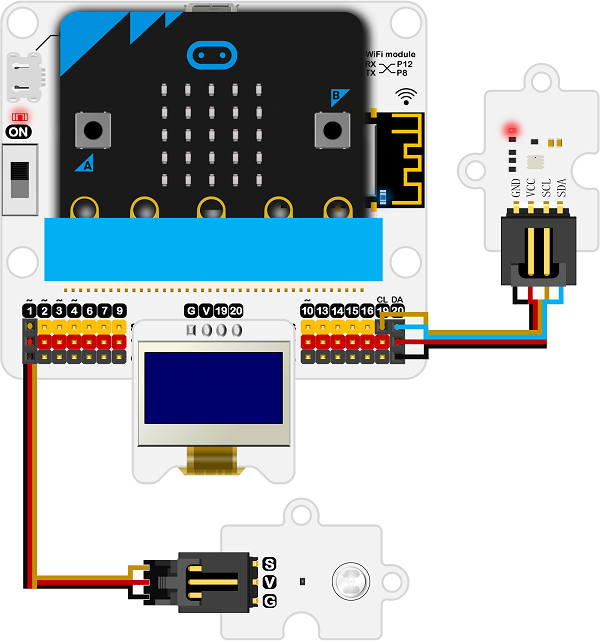
🌞 Environmental Quality Monitoring Station
Our Goal
Create a multi-sensor station that measures light intensity, temperature, and humidity.
Background
Environmental monitoring systems track conditions using GIS-enabled data capture for detailed location analysis. Students build a station using the light sensor, BME280, and OLED display — logging readings every minute to track environmental quality trends.
Automatic Irrigation Detection
Case 04
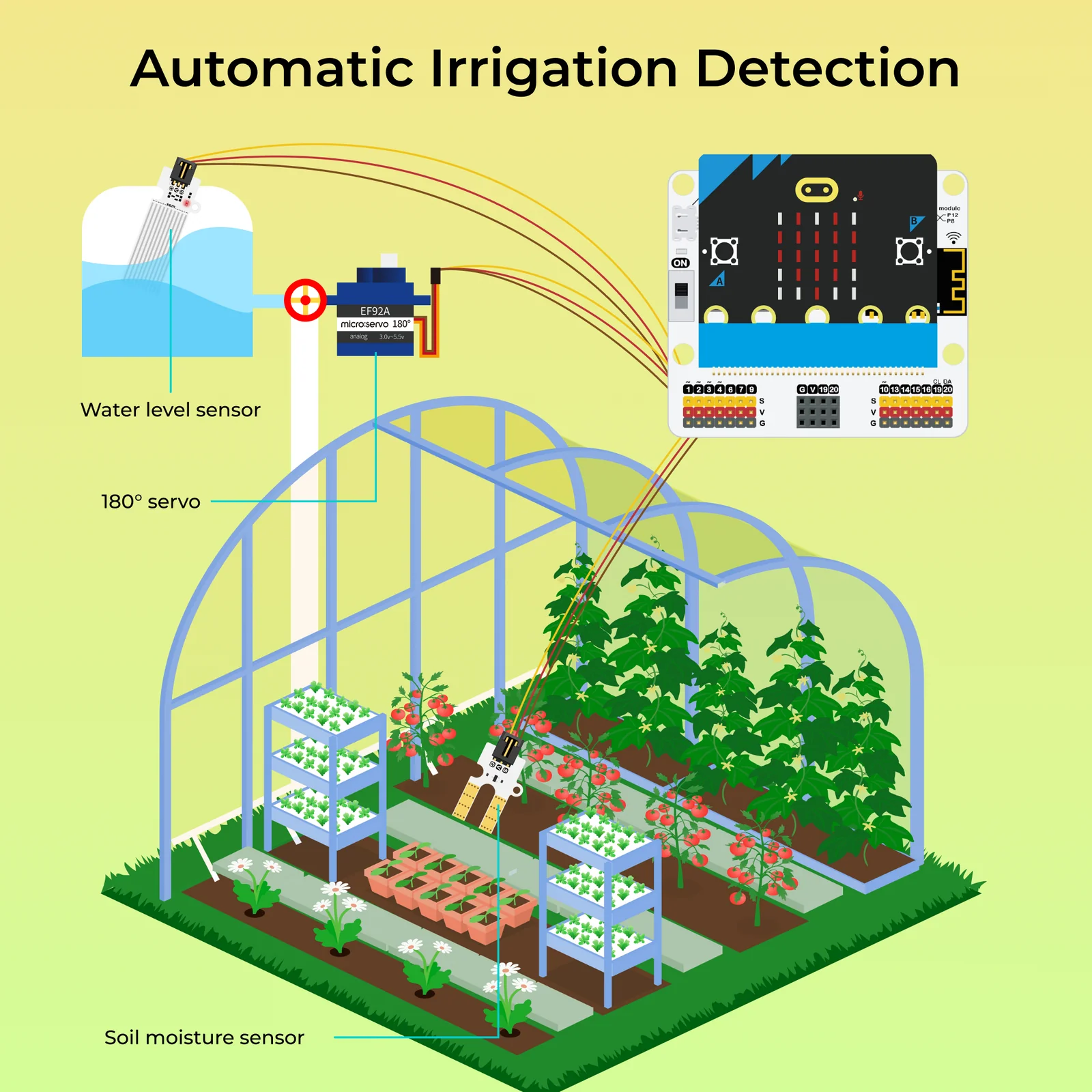
🌿 Automatic Irrigation Detection
Our Goal
Build an intelligent irrigation system that waters plants automatically based on soil conditions.
Background
Automated irrigation systems use sensors and timers to operate with minimal human intervention — used in modern farming to improve efficiency. Students create a smart system using a soil moisture sensor, water level sensor, and servo motor that opens a watering valve when the soil is too dry and alerts when the water tank is low.
Self Defence Monitoring Station
Case 05
🔔 Self Defence Monitoring Station
Our Goal
Protect an outdoor monitoring station with an automated proximity alarm system.
Background
Outdoor environmental monitoring stations need self-defence mechanisms to prevent damage and warn people to keep their distance. Students engineer a security system using a PIR motion sensor and ultrasonic distance sensor — triggering an audible buzzer alarm when movement is detected within 30cm.

Skills Students Develop

The Smart Science IoT Kit builds a layered skillset — from hardware connections all the way to cloud data analysis and automation.

🔌
IoT Hardware & Sensors
Wire, configure, and program 10+ professional sensors. Understand ADC readings, I²C protocols, and sensor calibration in real applications.
☁️
Cloud Platform Skills
Create accounts, configure devices, and stream live data to SmartIoT, ThingSpeak, and HiveMQ — tools used by professional IoT developers worldwide.
📊
Data Analysis & Visualization
Filter, chart, and interpret sensor data on cloud dashboards and in Microsoft Excel. Identify patterns, anomalies, and trends in real environmental datasets.
💻
Computational Thinking
Design IoT systems end-to-end: sense → process → transmit → visualize → automate. Apply conditionals, loops, and event-driven programming in real contexts.

Bring Real IoT Science to Your Classroom

Connect with our team to learn about curriculum alignment, volume pricing, and professional development support for the Smart Science IoT Kit.